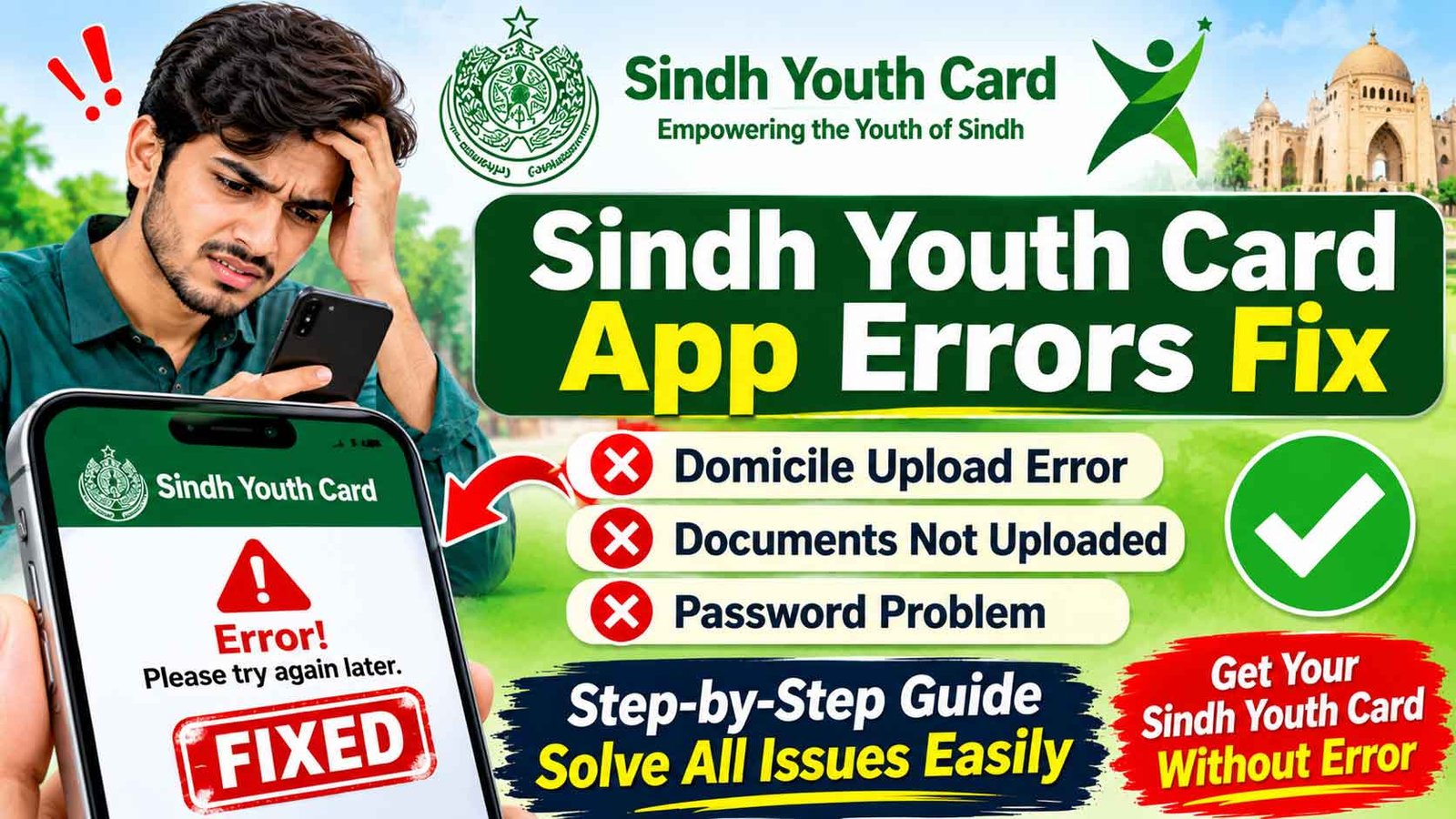
Sindh Youth Card App Errors Fix – Domicile Upload Error, Documents Not Uploaded & Password Problem: Thousands of young people in Sindh are applying for the Sindh Youth Card through the official mobile app, but many of them are getting stuck during registration because of a few common errors. The most reported problems are the Domicile Upload Error, the Documents Not Uploaded message, confusion about B-Form dates, and the Password Problem.
Sindh Youth Card App Errors Fix
The good news is that most of these errors are not serious — they happen because of small mistakes in the photo, the phone settings or the form, and they can be fixed in a few minutes. This article explains How to Resolve Sindh Youth Card App Issues error, why it comes, and the exact solution step by step.
Sindh Youth Card Login Link, Forgot Password Reset & OTP Not Working Fix
| Error | Main Reason | Quick Solution |
|---|---|---|
| Domicile Upload Error | Blurry photo, cut corners or very large image size | Take a clear photo in daylight with all four corners visible and upload again |
| Documents Not Uploaded | App does not have photo/camera permission, or weak internet | Allow permissions, clear app cache, upload documents one by one |
| B-Form Date Problem | Wrong issue/expiry dates entered | Write the exact dates printed on the B-Form or CNIC |
| Password Problem | Password too short or without numbers | Use at least 8 characters with letters and numbers, no spaces |
| Official App | Play Store (publisher: Sapphire Consulting) | App name: Sindh Youth Card |
| Official Portal | sindhyouthcard.gos.pk | Registration is completely free |
| Helpline | 021-99203009 | Sports & Youth Affairs Department, Sindh |
Error 1: Sindh Youth Card Domicile Not Uploaded issue Solution – Why It Comes And How To Fix It
The Domicile Upload Error appears when the app cannot read the photo of your domicile certificate properly. In most cases the photo is blurry, one corner of the paper is cut off, there is a shadow or shine on the paper, or the image file is too large.
Solution – Follow These Steps:
- Place the domicile certificate on a flat surface in good daylight.
- Take a straight photo from directly above — all four corners of the certificate must be visible in the photo.
- Make sure the name, father’s name and CNIC number on the domicile are clearly readable.
- Check that the name and CNIC number on the domicile match exactly with what you typed in the form. Even a small spelling difference can cause a rejection.
- Upload the photo again on a stable internet connection.
If your domicile is very old or damaged and its text is not readable, first get a clear copy made and then upload that photo.
Error 2: Documents Not Uploaded – Why It Comes And How To Fix It
Many users report that they select their documents but the app keeps showing that the documents are not uploaded. The biggest reason is that the app does not have permission to open the photos and camera of your phone. The second reason is a weak internet connection, because of which the upload stops in the middle.
Solution – Follow These Steps:
- Open your phone Settings → Apps → Sindh Youth Card → Permissions and allow Photos/Files and Camera.
- Go back to the app settings and clear the app cache, then open the app again.
- Upload your documents one by one. After each document, wait until its upload is fully complete before selecting the next one.
- Use Wi-Fi or a strong mobile data signal during upload. Do not start uploads on a weak or dropping connection.
- If the app still does not accept the document, close the app completely, restart your phone, and try again.
Error 3: B-Form Issue And Expiry Date Problem
In the Create Account form, the app asks for the document’s issue date and expiry date. This is where most under-18 applicants and their parents get confused, especially when they select the B-Form option instead of CNIC.
Solution – Follow These Steps:
- Enter the exact dates printed on your document — do not guess and do not write today’s date.
- On a CNIC, the expiry date is printed on the card next to “Valid Till”.
- Keep the order of day, month and year correct while typing the dates.
- If you selected the B-Form Number option, enter the B-Form’s own dates and your parent or guardian’s CNIC details where the form asks for them.
Error 4: Password Problem – Password Not Accepted
The app does not accept a weak or short password, and many users keep trying without knowing the rule. Because of this, their account is not created even after filling the whole form.
Solution – Follow These Steps:
- Make a password of at least 8 characters.
- Mix letters and numbers — for example, your name joined with your birth year.
- Do not use spaces in the password.
- An easy method: first write the password in your phone’s Notes app and look at it carefully, then type the same password in the form.
- Write this password down somewhere safe — you will need the same password with your mobile number to log in to the app and the portal later.
- If your account is already created and you have forgotten the password, use the Forget Password option on the login screen.
Important Tips Before You Apply Again
- Download only the official Sindh Youth Card app from the Google Play Store. Do not use any other app or website that claims to register you.
- Keep the app updated to the latest version before applying.
- Complete your registration in one sitting on a stable internet connection.
- Registration is completely free. If any person or shop asks you for money for registration, do not pay.
- If you have tried all the solutions above and the same error still comes again and again, it may be a temporary problem on the app’s side. Wait for some time and try again, or call the official helpline 021-99203009.
FAQs
Q: Why does the Domicile Upload Error come again and again?
A: In most cases the photo is blurry, a corner of the certificate is cut, or the name and CNIC number on the domicile do not match the form. Take a clear photo in daylight with all four corners visible and upload it again.
Q: My documents show “not uploaded” even after selecting them. What should I do?
A: Allow the app Photos and Camera permission from your phone settings, clear the app cache, and upload the documents one by one on a strong internet connection.
Q: Which dates should I enter for the B-Form?
A: Enter the exact issue and expiry dates printed on your B-Form. Do not guess the dates.
Q: What type of password does the app accept?
A: A password of at least 8 characters with letters and numbers mixed, without spaces. Remember it safely, because the same password is used for login.
Q: Is there any fee to fix these errors or to register?
A: No. Sindh Youth Card registration is completely free, and fixing these errors costs nothing.
Q: Where can I get official help for app problems?
A: Call the official helpline 021-99203009 or visit the official portal sindhyouthcard.gos.pk.